

SKYMISSION · Tool guide
RC2 Transfer
RC2 Transfer sends a SkyMission RC2 Transfer ZIP from Windows to existing mission slots on a DJI RC2. It assigns mission parts, backs up existing files and replaces them so you do not have to find and edit UUID folders manually.
Before you start
- You need Windows, a DJI RC2 with USB file transfer and an RC2 Transfer ZIP exported from a saved SkyMission mission.
- Create enough small dummy waypoint missions on the RC2 beforehand. The tool uses these existing slots and does not create new UUID missions.
How to use it
- If you downloaded the file from SkyMission, trust it and deliberately want to run it: fully extract the package, open SkyMission-RC2-Transfer.exe, select “More info”, then “Run anyway”. If this option is missing or your administrator blocks launch, contact them.
- Connect the RC2 to Windows by USB and allow file transfer. Use the manual selection option if automatic detection fails.
- Select the RC2 Transfer ZIP from Mission Planner. The tool validates the package and checks the number of mission parts.
- Select exactly as many existing slots as there are mission parts. Part 1 goes to the top selected slot, followed by part 2 and subsequent parts.
- Review the selection and start the transfer. A backup is created in Documents\SkyMission\RC2 Backups before the KMZ, ShotSnap and preview files are replaced.
- Wait for the success message and restart the RC2. Open every transferred mission and verify its route and parameters. Fly multipart missions in order: 1, 2, 3 …
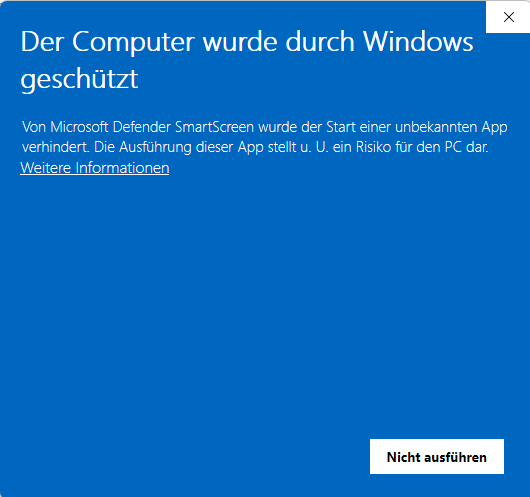
Only open “More info” after checking the file and deciding you trust it.
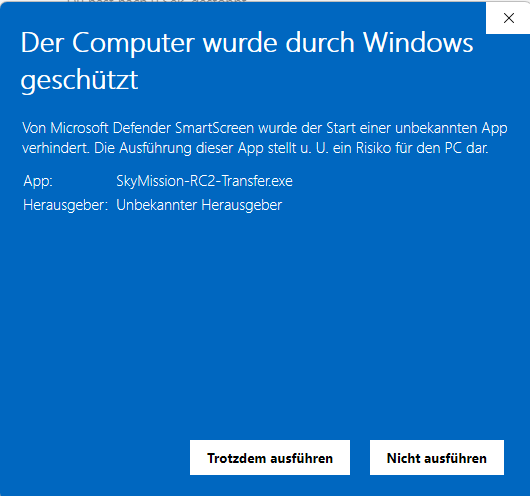
Windows shows the filename and unknown publisher here. Choose “Don’t run” if unsure.
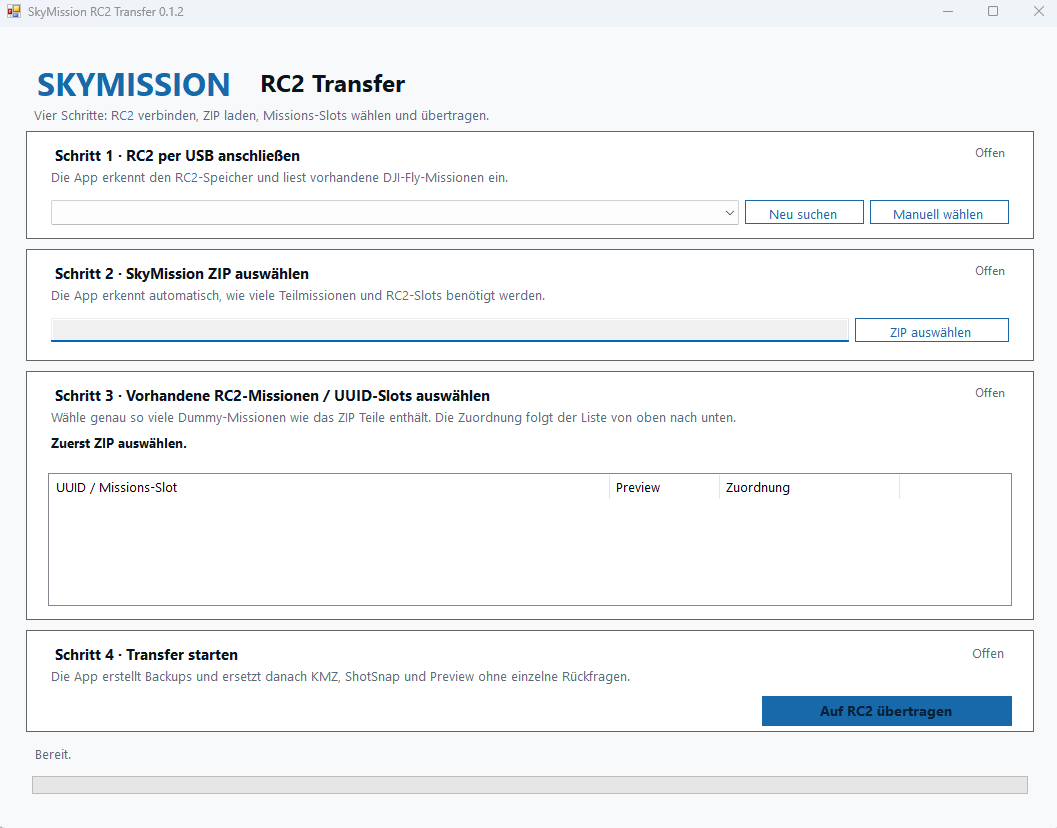
Connect RC2 → select ZIP → select mission slots → transfer. Example interface; labels may differ between versions.
What you get
The selected, already registered RC2 slots contain the exported SkyMission missions. Keep the backup until you have verified the transfer.
What to check
Slot assignment overwrites existing mission files. DJI Fly allows at most 200 waypoints per individual mission, so long routes are split. The utility does not replace verification on the controller.
Common questions
RC2 not detected?
Check the USB connection, file transfer mode and Windows access. Select the appropriate storage manually.
Wrong number of slots?
Create more dummy missions on the RC2 or correct the selection. The number of selected slots must match the number of mission parts.